How to find your Kindle email address
Your Send to Kindle address ends in @kindle.com. Where to find it on Amazon or the Kindle itself (with screenshots), how to approve a sender, and why documents don't arrive.
Every Kindle, and every Kindle app, has its own email address. Anything sent to it — an EPUB, a PDF, an article from a service like ours — turns up in your library. To stop spam, Amazon only delivers mail from addresses you’ve approved. Both settings live on the same page.
What is my Kindle email address?
An address Amazon assigns to each device, ending in @kindle.com — something like marty_a1b2c3@kindle.com. It isn’t your Amazon login, and it differs per device: a Paperwhite, a Scribe and the phone app each get their own.
Older guides mention a second address ending @free.kindle.com. It still works, but you don’t need it — delivery over Wi-Fi is free to the ordinary address.
Find your Send to Kindle email address
On the Amazon website
The only place that lists every device at once. Start here if you have several.
- Open Manage Your Content and Devices and sign in.
- Open the Preferences tab.
- Scroll to Personal Document Settings and expand it.
- Under Send-to-Kindle E-Mail Settings, find your device. Its address ends in
@kindle.com.
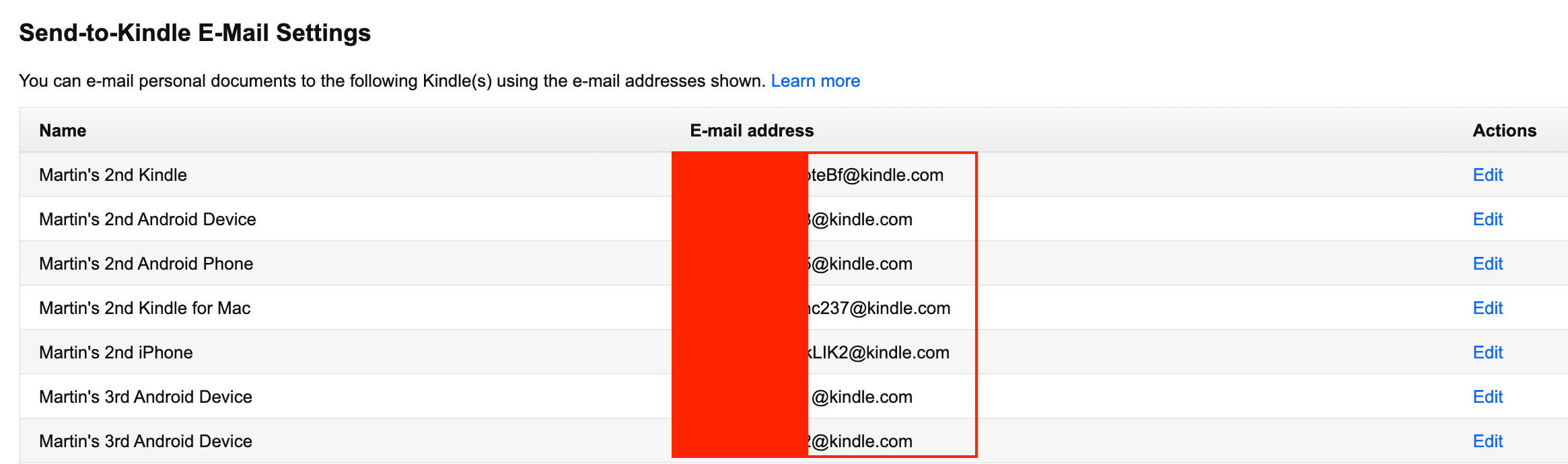
Rows are labelled the way Amazon names your devices — “Marty’s 5th Kindle”, “Marty’s iPhone” — so copy the one you actually read on. Edit changes the part before the @ to something memorable. Outside the US the page is the same on amazon.co.uk, amazon.de and the rest, but each only lists that marketplace’s devices.
On the Kindle itself
Faster if it’s in your hand: Settings → Your Account. The wording moves around between firmware versions, but the address is always on that screen.
In the Kindle app on a phone or tablet
The app doesn’t show its address anywhere — this is the part that catches people out. Read it off the Amazon page above, where the app is listed alongside your physical Kindles.
Approve a sender
- Stay in Personal Document Settings.
- Scroll to Approved Personal Document E-mail List.
- Choose Add a new e-mail address, type the address, and select Add Address.
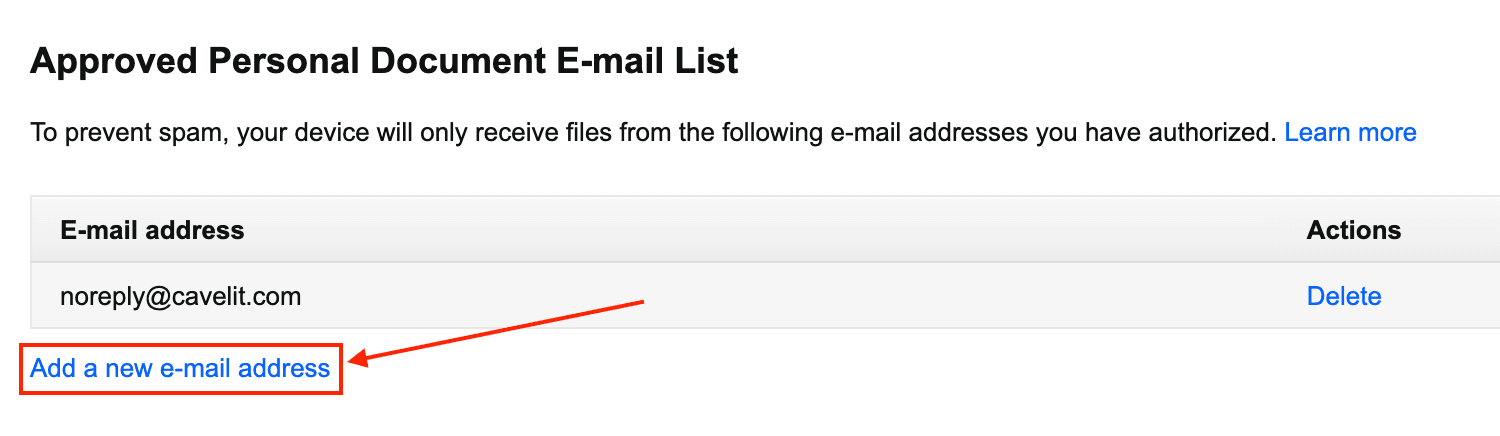
Add your own email if you’ll be sending files yourself, plus the address of any service that sends for you. For RSS to Kindle, that’s newpost@rsstokindle.com. Amazon allows up to 15 approved addresses.
Approval is per account, not per device, so once covers every Kindle you own. It has to be the exact address the mail is sent from — a whole domain won’t work, and the address you read mail at is no help if your client sends from an alias.
Send to Kindle without using the email address
You can skip all of this. Amazon’s web uploader pushes a file straight to your library from a browser you’re signed into. Our free EPUB to Kindle tool does need the address, because it delivers by email, but it asks once and remembers.
The email route is still worth setting up for anything recurring — it’s the only one a service can use on your behalf while you’re away from the computer.
If a document doesn’t arrive
- The sender isn’t approved. This is the cause nine times out of ten. Check the exact address, and look for a message from Amazon in your inbox saying a document was rejected.
- It went to a different device. Check you used the address for the Kindle in your hand, not an old one or the phone app.
- The Kindle is offline. Delivery needs Wi-Fi. Amazon keeps retrying for up to 60 days, so it will turn up once the device syncs.
- The file is too big or the wrong type. Email delivery accepts up to 50 MB per message and 25 attachments. EPUB, PDF, HTML, TXT, RTF and common image formats work; MOBI is no longer accepted.
What to send once it’s set up
With the address in hand you can email yourself books with our free EPUB to Kindle tool, pick up free EPUBs from these ten sites, or have the blogs and newsletters you follow delivered every morning. If it’s a newsletter you’re after, Substack has its own quirks.
Common questions
How do I find out my Kindle email address?
Sign in to Amazon, open Manage Your Content and Devices, then Preferences, then Personal Document Settings. Your devices are listed under Send-to-Kindle E-Mail Settings, each with its own address ending in @kindle.com. On a Kindle you're holding, the same address is on the Settings screen under Your Account.
Is my Kindle email the same as my Amazon email?
No. Your Amazon email is the one you sign in with. The Kindle email is a separate address Amazon assigns to each device, ending in @kindle.com, and it only accepts files from senders you approve.
Why is my Kindle not receiving emails?
Nine times out of ten the sending address isn't on your Approved Personal Document E-mail List, and Amazon silently rejects the message or emails you to say it did. After that, check that you used the address for the right device, that the Kindle has been on Wi-Fi, and that the file is under 50 MB and not a MOBI, which Amazon no longer accepts.
Can I change my Send to Kindle email address?
Yes. On the same Personal Document Settings screen you can edit the part before the @ to anything that isn't taken. The @kindle.com half is fixed, and changing the prefix takes effect immediately, so update anything that was sending to the old one.
How many senders can I approve?
Up to 15 addresses per Amazon account. The list is shared across all your devices, so approving a sender once covers every Kindle you own.
Does sending documents to my Kindle cost anything?
Delivery over Wi-Fi is free. Only older Kindles delivering over cellular could incur a fee, which is why the free.kindle.com address existed; you don't need it on a device that syncs over Wi-Fi.
Start sending blogs, Substacks and news to your Kindle.
Free to try. Set up your first feed tonight and wake up to something worth reading.
Send my first article